How to Use PageSpeed Insights to Improve Site Speed
4/13/2026 • 5 min read
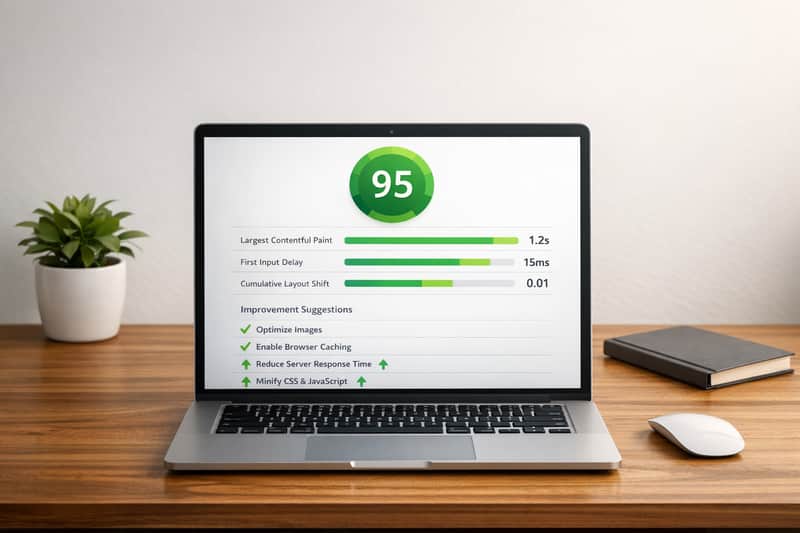
How to Use PageSpeed Insights to Improve Site Speed
Website speed is no longer just a technical detail - it’s a critical factor that directly impacts user experience, search engine rankings, and ultimately, your bottom line. Slow-loading websites frustrate users and cause Google to rank them lower. If you’re an indie builder, solo entrepreneur, or business owner looking to improve your site’s performance, Google’s PageSpeed Insights is an essential tool to uncover the causes of sluggishness and take actionable steps to fix them.
In this article, we’ll walk you through how to effectively use PageSpeed Insights, explain its metrics, and provide practical tips to optimize your site. Let’s dive into the world of faster, more efficient websites and how small changes can lead to big improvements.
Why Website Speed Matters
Before jumping into the tool itself, it’s vital to understand the why. Website loading speed directly impacts:
- Search Engine Rankings: Google prioritizes fast websites, as they contribute to better user experiences.
- Conversions and Sales: Faster sites keep users engaged and encourage them to take action.
- User Retention: A slow website can drive potential customers away, increasing bounce rates.
If your site isn’t performing optimally, you’re likely missing out on traffic, leads, and revenue. PageSpeed Insights offers a data-driven approach to identifying and resolving speed bottlenecks.
sbb-itb-641714f
Overview of PageSpeed Insights
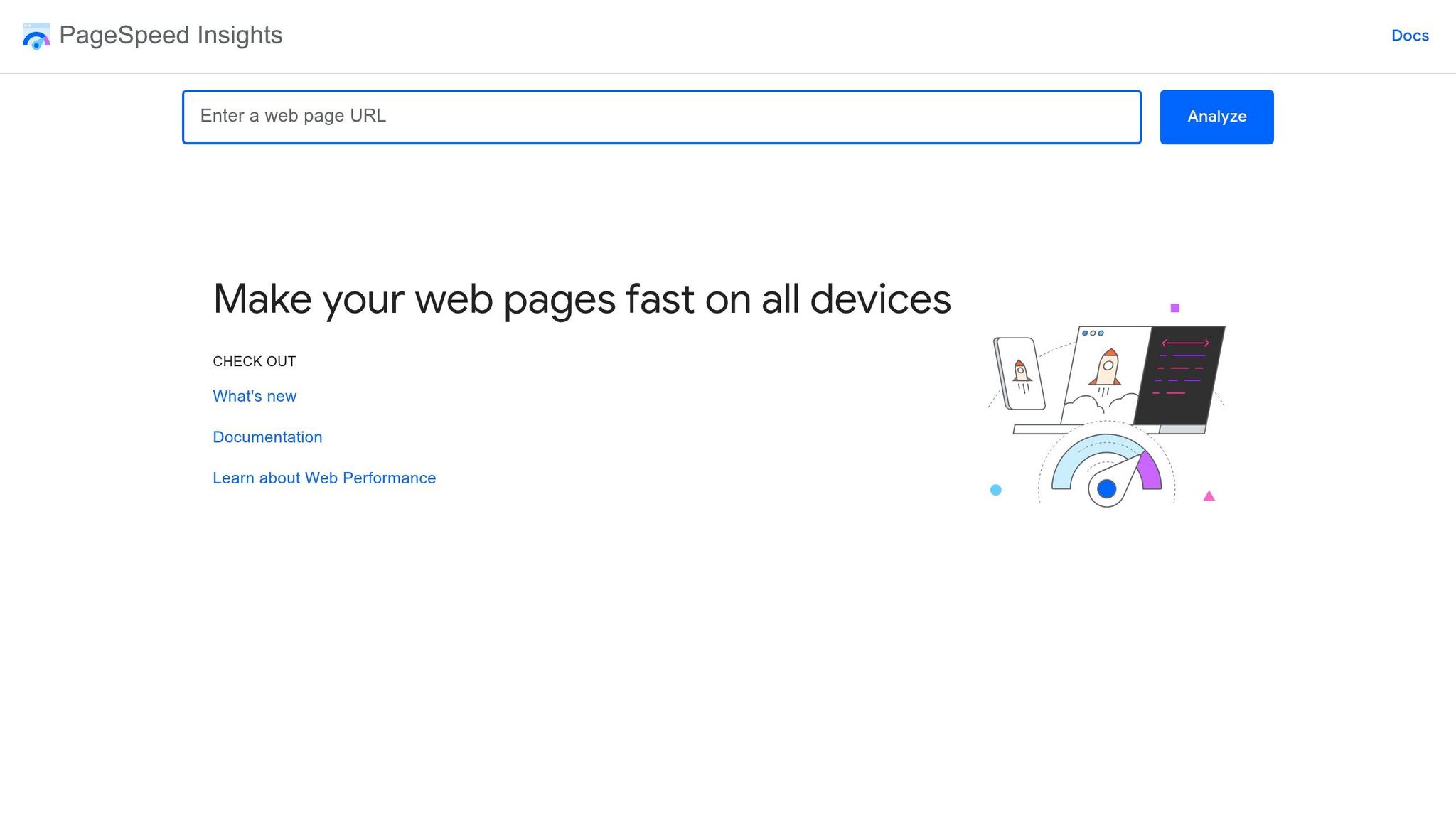
Google’s PageSpeed Insights tool evaluates the performance of a webpage on both mobile and desktop devices. It provides detailed metrics and actionable recommendations to improve speed and usability. Here’s what PageSpeed Insights measures:
- Core Web Vitals: Includes metrics like Largest Contentful Paint (LCP), First Contentful Paint (FCP), and Cumulative Layout Shift (CLS).
- Opportunities and Diagnostics: Highlights areas where performance can be improved, such as image optimization or reducing unused JavaScript.
- Accessibility and Best Practices: Evaluates user experience factors, such as font readability, heading structure, and other key aspects.
With this tool, you can quickly identify performance issues and tackle them systematically.
Step-by-Step Guide: Using PageSpeed Insights to Diagnose Issues
1. Access and Analyze Your Website
- Go to the PageSpeed Insights website.
- Enter your site’s URL in the search bar and click "Analyze."
- Wait for the tool to process your site’s data.
2. Review Core Metrics
Once the analysis is complete, you’ll see scores for mobile and desktop performance. The tool displays a breakdown of Core Web Vitals:
- First Contentful Paint (FCP): Measures how quickly the first visible content appears.
- Largest Contentful Paint (LCP): Captures the time taken for the largest visible element (like an image or heading) to load.
- Cumulative Layout Shift (CLS): Tracks unexpected layout shifts during page load, which can create a jarring experience for users.
- Speed Index: Indicates how quickly content appears during page load.
- Total Blocking Time (TBT): Highlights parts of your website that delay interactivity.
Pay close attention to issues flagged in red, as these have the most significant impact on performance.
3. Expand Recommendations
Below the performance metrics, you’ll find detailed recommendations under Opportunities and Diagnostics. Examples include:
- Compressing large images or using modern formats like WebP.
- Reducing unused JavaScript or CSS.
- Eliminating render-blocking resources (e.g., delaying certain scripts).
Each recommendation includes an estimated load time savings, enabling you to prioritize fixes.
Key Metrics Explained
Understanding the metrics in PageSpeed Insights is crucial for informed optimization. Here’s a detailed breakdown of the most important ones:
1. Largest Contentful Paint (LCP)
- What it is: Measures how long it takes for the largest visible content (e.g., a hero image or heading) to load.
- Target: Below 2.5 seconds for a good user experience.
- Optimization Tip: Compress large images and reduce server response times.
2. Cumulative Layout Shift (CLS)
- What it is: Tracks unexpected layout shifts during loading (e.g., text or images jumping around).
- Target: Keep shifts below 0.1.
- Optimization Tip: Define image dimensions in your code and avoid inserting dynamic content above existing elements.
3. Total Blocking Time (TBT)
- What it is: Measures delays caused by heavy scripts or resources blocking the main thread.
- Optimization Tip: Minify JavaScript, remove unused scripts, or defer non-critical resources.
4. First Contentful Paint (FCP)
- What it is: Captures the time when the first visual element (like text or an image) is rendered.
- Target: Below 1.8 seconds for a speedy and satisfying experience.
- Optimization Tip: Use caching and a Content Delivery Network (CDN) to serve assets faster.
Practical Tips to Fix Common Issues
1. Optimize Images
- Compress images without sacrificing quality.
- Use next-gen formats like WebP or AVIF.
- Resize images to the dimensions actually required for the webpage.
2. Minimize JavaScript and CSS
- Remove unused code.
- Minify files to reduce their size.
- Defer non-critical scripts to load after the main content.
3. Enable Caching
Caching stores static resources locally so users don’t need to download everything on repeat visits. Use tools like Cloudflare or a CDN for added efficiency.
4. Fix Accessibility Issues
PageSpeed Insights also flags accessibility issues such as:
- Inadequate color contrast.
- Misordered headings.
- Missing descriptive text for buttons or links. By addressing these, you ensure an inclusive and user-friendly experience for all visitors.
Key Takeaways
- Importance of Speed: A fast website improves both user experience and search engine rankings.
- Core Metrics Matter: Focus on critical metrics like LCP, CLS, and TBT to achieve measurable improvements.
- Actionable Fixes:
- Compress and resize images.
- Remove unused JavaScript and CSS.
- Enable caching and use a CDN to reduce load times.
- Accessibility Counts: Fixing minor usability issues can make your site more accessible and user-friendly.
- Iterative Improvement: Regularly run your website through PageSpeed Insights to monitor progress and catch new issues.
Conclusion
Optimizing your website’s speed may feel daunting, but tools like PageSpeed Insights make the process approachable - even for non-technical users. By understanding your site’s performance metrics and making data-driven adjustments, you can create a faster, more efficient, and user-friendly digital experience. Whether you’re a solo entrepreneur or managing a small business, investing in website speed is an investment in your success.
Remember, the web is constantly evolving, and so should your website. Regular audits and tweaks will keep you ahead of the competition while meeting your users' expectations.
Now, it’s time to put these insights into action and transform your website into a high-performing asset!
Source: "Google PageSpeed Insights Tutorial – Fix Your Website Speed & Rank Higher" - ComputerSluggish, YouTube, Feb 12, 2026 - https://www.youtube.com/watch?v=u3ArwX_WZYo
Explore the six basics
Every Clunky AI article maps back to one or more of the questions a business site has to answer.