How DNS Prefetch Impacts Page Load Speed
3/9/2026 • 10 min read

How DNS Prefetch Impacts Page Load Speed
DNS prefetching speeds up your website by resolving domain names in advance, reducing delays caused by DNS lookups. This is especially useful for sites relying on third-party resources like fonts, analytics, or images hosted on different domains. By adding a simple <link rel="dns-prefetch" href="//example.com"> to your site's <head>, you can cut DNS lookup times (typically 20-120ms) to nearly zero, improving metrics like Largest Contentful Paint (LCP) and First Contentful Paint (FCP).
Here’s what you need to know:
- DNS lookups translate domain names (e.g., "example.com") into IP addresses, but they add delays.
- DNS prefetching resolves these names in the background before they're needed.
- Prefetching works best for non-critical, third-party domains like CDNs, fonts, or tracking scripts.
- Avoid over-prefetching (limit to 10 domains per page) to prevent browser resource contention.
- Use preconnect instead of prefetch for critical resources.
Pro Tip: Tools like Chrome DevTools or WebPageTest can help verify if prefetching is working by checking DNS lookup times (should be 0ms). Automated tools like dCLUNK™ also provide recommendations to optimize DNS performance. Implementing prefetching thoughtfully can reduce page load times and enhance user experience.
Speed Up Your Website: Preload, Prefetch, Preconnect and More!
sbb-itb-641714f
How DNS Prefetching Works
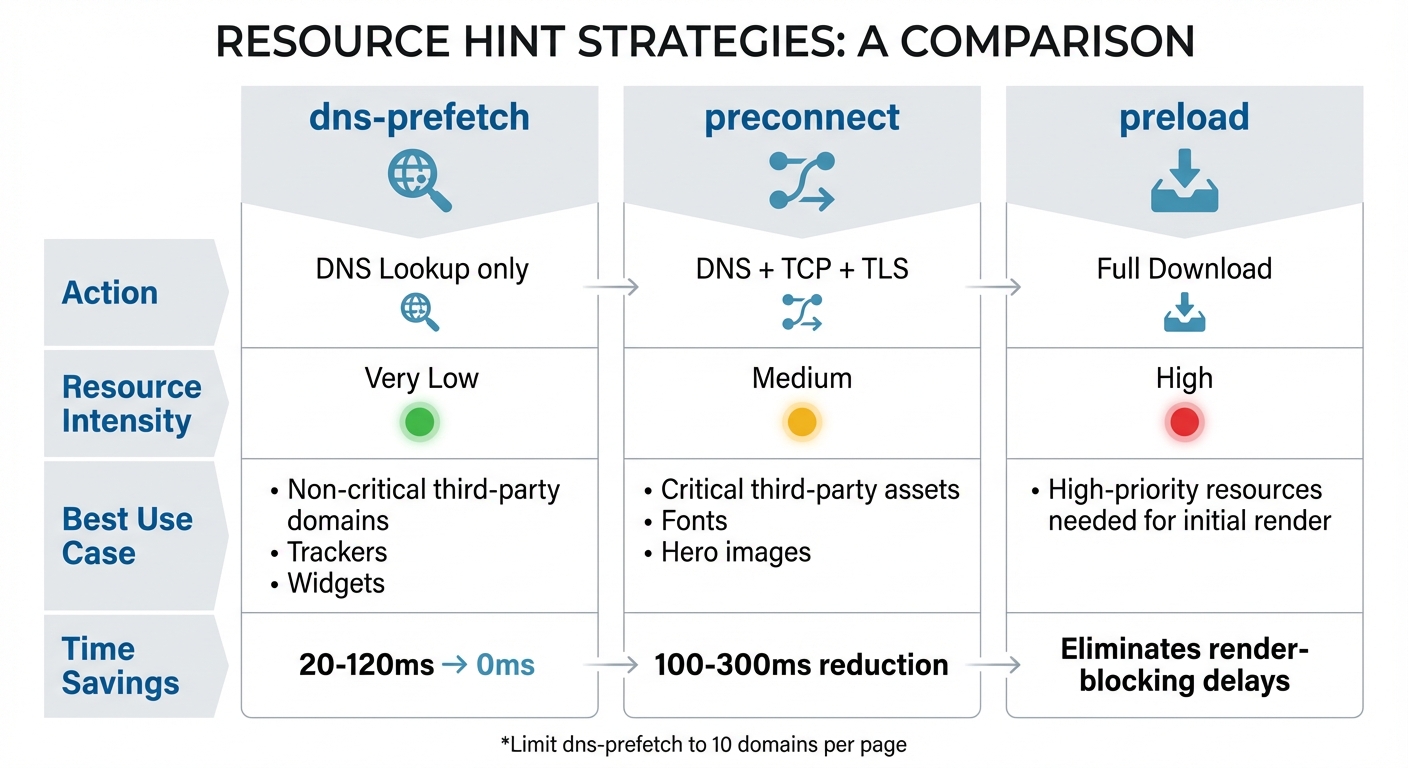
DNS Prefetch vs Preconnect vs Preload: Performance Comparison Chart
How Browsers Resolve Domains Early
DNS prefetching helps your browser resolve domain names to IP addresses before it actually requests any resources. This means the browser can prepare for future requests without unnecessary delays.
To make this happen, browsers use dedicated worker threads. For instance, Chromium-based browsers rely on 8 asynchronous worker threads specifically for DNS prefetching. This setup ensures that a slow lookup won't block others, and the browser's main rendering thread remains focused on displaying content.
The process bypasses the browser's network stack and preloads the operating system's DNS cache. So, when a resource from that domain is finally needed, its IP address is already stored locally. This can be implemented with a straightforward HTML tag, like this:
<link rel="dns-prefetch" href="//example.com">
This tag should be placed early in the <head> section for optimal results.
Unlike preconnect, which also establishes TCP connections and performs TLS handshakes, DNS prefetching is limited to resolving domain names. It’s a lightweight way to prepare for future requests without putting extra strain on resources.
Performance Improvements from DNS Prefetching
The time savings from DNS prefetching are noticeable. It can cut navigation times by around 200ms and reduce connection latency by 100–300ms. On websites that rely on multiple third-party domains, these savings can add up quickly.
DNS prefetching is particularly helpful for chained dependencies. For example, if a third-party analytics script loads tracking pixels from other domains, or a CDN-hosted stylesheet references fonts from a different origin, prefetching eliminates the wait time when those resources are eventually requested.
Redirects are another area where DNS prefetching shines. If the final destination domain isn’t immediately visible in your page’s HTML, prefetching the target domain can save an entire round-trip delay.
| Feature | Action | Resource Intensity | Best Use Case |
|---|---|---|---|
| dns-prefetch | DNS Lookup only | Very Low | Non-critical third-party domains, trackers, widgets |
| preconnect | DNS + TCP + TLS | Medium | Critical third-party assets (e.g., fonts, hero images) |
| preload | Full Download | High | High-priority resources needed for initial render |
When DNS Prefetching Doesn't Work
DNS prefetching isn’t a one-size-fits-all solution. Overusing prefetch hints can cause problems - browsers limit the number of DNS requests they handle at a time, so excessive prefetching may lead to resource contention and delays. To avoid this, limit manual DNS prefetches to 10 per page.
It’s also unnecessary to prefetch your own domain, as the browser resolves your site’s IP address when it loads the HTML. DNS prefetching is most effective for external domains.
There are a few quirks to keep in mind. For example, Safari might ignore <link> tags that combine preconnect and dns-prefetch in the same rel attribute (e.g., rel="preconnect dns-prefetch"). To avoid issues, always use separate tags for each hint.
Lastly, DNS results are stored temporarily. On Windows, for example, the DNS cache typically holds only 50–200 domain names before it starts removing older entries. If a prefetched domain isn’t used within a short time (often around 5 minutes), the cache entry might expire, canceling out the potential benefit. Keeping these limitations in mind will help you use DNS prefetching effectively.
How to Implement DNS Prefetching
DNS Prefetch HTML Syntax
Setting up DNS prefetching is pretty simple. You use a <link> tag with a rel="dns-prefetch" attribute and specify the target domain in the href attribute. Here's an example:
<link rel="dns-prefetch" href="//cdn.example.com">
You can write the URL as either protocol-relative (starting with //) or absolute (starting with https://). In both cases, the browser extracts the domain name for prefetching.
For single-page applications (SPAs), you can dynamically add <link> tags when new domains are needed. Just make sure to check navigator.connection.saveData to respect users' data-saving settings.
Selecting Domains to Prefetch
Once you know the syntax, the next step is deciding which domains to prefetch. Focus on external domains that your site depends on. Prefetching your own domain isn’t necessary. Ideal candidates include:
- Content Delivery Networks (CDNs)
- Font services (e.g., Google Fonts)
- Analytics platforms
- Social media widgets or embeds
"DNS prefetching is especially valuable on mobile networks where latency is higher."
- Nawaz Dhandala, Author, OneUptime
Keep your prefetch hints limited - ideally, between 4 and 6 high-priority domains, and no more than 10. For the most critical connections, consider using preconnect instead of dns-prefetch to save even more time.
Common Implementation Mistakes to Avoid
Even with proper setup, there are a few common mistakes to watch out for. Overdoing it with prefetch hints is a big one. If you include too many, you risk creating resource contention, which can actually slow down the browser. Another misstep is using both dns-prefetch and preconnect for the same domain - preconnect already handles DNS lookups, so doubling up is unnecessary.
Avoid prefetching your own domain or domains that aren’t actively used. Also, make sure to place prefetch tags early in your HTML. If they’re added late or injected via JavaScript, the DNS lookups might happen too late to be helpful.
Safari users should note an additional quirk: using multiple resource hints in the same <link> tag can cause issues with the browser.
"Using an excessive number of DNS prefetches can lead to performance issues since browsers place limits on the number of outstanding DNS requests they will maintain."
- Billy Hoffman, CTO at Rigor (now Splunk)
Measuring DNS Prefetching Performance
Monitoring DNS Timing with Developer Tools
To check if DNS prefetching is working, head to your browser's Network tab and enable the "DNS" column. In Chrome DevTools, you can do this by right-clicking the column headers in the Network panel and selecting "DNS" or "DNS Lookup." This column shows how long each DNS lookup takes. If prefetching is working as intended, the lookup time will display as 0ms when the resource is requested, meaning the DNS was either prefetched or cached.
The Network tab's waterfall chart can also help. Typically, DNS lookups appear as a dark blue bar at the start of a request. When prefetching is successful, that blue bar disappears for subsequent requests to the same domain. For further testing, visit chrome://net-internals/#dns to clear your host cache and confirm that DNS entries resolve instantly when the page loads.
Key Performance Metrics to Track
DNS prefetching can significantly impact several performance metrics:
- DNS Lookup Time: Normally, DNS lookups take anywhere from 20ms to 120ms, and on slower networks, it can exceed 200ms. Prefetching can reduce this time to 0ms.
- Largest Contentful Paint (LCP): LCP measures how quickly the largest visible element on the page loads. By prefetching DNS for third-party resources like images or CSS, you can reduce delays and improve this metric.
- First Contentful Paint (FCP): Prefetching DNS for key assets like fonts and CSS can speed up the time it takes for the first piece of content to appear on the screen.
- Time to First Byte (TTFB): While TTFB focuses on server response times, resolving DNS early eliminates lookup delays in the request chain for sub-resources, offering indirect benefits.
Testing with Performance Tools
WebPageTest is a great tool for visualizing DNS prefetching in action. Its detailed waterfall graphs show how effective prefetching shifts DNS, connection, and SSL segments to the left, occurring before the resource is requested. You can also export a HAR file and check har.log.entries[idx].timing.dns to calculate total DNS time.
Lighthouse is another valuable resource for auditing page performance. It evaluates Core Web Vitals and highlights areas where DNS lookup delays can be minimized. For programmatic insights, you can use the Performance API with a PerformanceObserver to measure the difference between domainLookupEnd and domainLookupStart. A result of 0ms confirms a successful prefetch or a cache hit.
Lastly, keep an eye on the DevTools Console for warnings about unused prefetch hints. For instance, it might note when a resource was preloaded but not utilized within a short time. These insights can help fine-tune your DNS prefetching strategy and improve overall performance with tools like dCLUNK™ by CLUNKY.ai.
Using dCLUNK™ by CLUNKY.ai to Optimize DNS Performance
If you're looking to speed up page loads and improve DNS performance, dCLUNK™ by CLUNKY.ai is a tool worth exploring.
Identifying DNS Issues with dCLUNK™
DNS delays can be a hidden culprit behind slow website performance. dCLUNK™ dives deep into your site's DNS resolution process, auditing how efficiently your domain translations are handled. It identifies delays and highlights which third-party resources would benefit most from prefetching. Plus, it flags common pitfalls like prefetching too many domains (over 10), which can actually slow things down instead of speeding them up.
Getting Prioritized Performance Recommendations
Once dCLUNK™ pinpoints DNS-related bottlenecks, it provides clear, actionable recommendations. For example, it helps you categorize domains by their importance. The most critical 4–6 origins should use preconnect to establish faster connections, while less essential third-party domains should stick to dns-prefetch. This approach ensures that browser resources are used efficiently, focusing on areas that deliver the biggest performance boosts. These suggestions align perfectly with earlier strategies for optimizing DNS prefetching.
Free Website Scans and Detailed Reports
One of the best parts? dCLUNK™ offers free website scans. These scans deliver in-depth reports that outline DNS performance issues, pinpoint which domains are causing delays, and suggest specific fixes. Beyond DNS, the reports also cover areas like user experience, accessibility, and compliance, giving you a well-rounded view of your site's overall performance. With this information, you can refine your DNS prefetching strategy and work toward faster page load times - all without spending a dime.
Conclusion
DNS prefetching is a simple yet effective way to reduce page load delays. By resolving domain names in the background before resources are requested, it eliminates the usual DNS lookup delay, which can range from 20ms to 120ms.
To get the most out of DNS prefetching, it’s important to implement it thoughtfully. Use preconnect for the 4–6 most critical third-party domains to handle DNS, TCP, and TLS all at once. For less critical origins, use dns-prefetch as a lightweight alternative. These hints should be placed at the top of your HTML <head>, limited to about 10 domains per page. Avoid prefetching your own domain, as it’s unnecessary and adds no value. When done right, DNS prefetching can improve Largest Contentful Paint (LCP) by 9% to 14% and reduce latency by a median of 187ms.
Managing DNS hints manually can be tricky, which is where automated tools come in handy. dCLUNK™ by CLUNKY.ai simplifies the process by identifying third-party domains that slow down your site, spotting common issues like over-prefetching, and offering prioritized recommendations tailored to your needs. Their free scans provide detailed reports on DNS performance, user experience, accessibility, and compliance, giving you a clear path to optimization.
Faster websites mean happier users, better engagement, and higher conversions. Combining smart DNS prefetching with insights from tools like dCLUNK™ can help you overcome performance challenges and deliver a noticeably quicker browsing experience.
FAQs
How do I choose which third-party domains to DNS-prefetch?
To boost your page speed, pinpoint the third-party domains your site relies on for resources like scripts, images, or APIs. This is especially important for domains that aren't cached yet but will be needed soon. By adding <link rel="dns-prefetch" href="//domain.com"> to your HTML head, you can reduce DNS resolution delays.
Prioritize domains that users are likely to interact with shortly after the page loads or when clicking on links. This small adjustment can make a noticeable difference in how quickly your site responds.
When should I use preconnect instead of dns-prefetch?
When you're looking to optimize performance for critical third-party domains, preconnect is your go-to option. It sets up the entire connection in advance - this includes the DNS lookup, TCP handshake, and TLS negotiation. By doing so, it ensures faster loading times for high-priority resources.
On the other hand, DNS-prefetch only resolves the domain name to an IP address. While it's quicker to implement, it's better suited for less critical resources where a full connection isn't immediately necessary.
How can I confirm dns-prefetch is working in Chrome DevTools?
To check if dns-prefetch is functioning, open Chrome DevTools and navigate to the Network tab during a page load. Look for DNS resolution events associated with the domains specified using <link rel="dns-prefetch> or those automatically identified by Chrome. These events should show up as distinct entries. Additionally, faster follow-up requests to those domains suggest that prefetching is working as intended.
Explore the six basics
Every Clunky AI article maps back to one or more of the questions a business site has to answer.
Related Posts
Tags PerformancePrivacyUser Experience
Category Website Optimization